How to Enable the Designer When the Fluent Tab Is Missing
This article explains how to turn on the Fluent Designer add-in in Microsoft Office when the Fluent tab does not appear on the ribbon. These steps apply to Word, Excel, and PowerPoint.
The Fluent tab is added to the ribbon by the Fluent Designer COM add-in. If the add-in is turned off, the tab will not show up when Office starts. You can turn the add-in back on from the Office options.
Open the Office application (Word, Excel, or PowerPoint) and select File > Options.
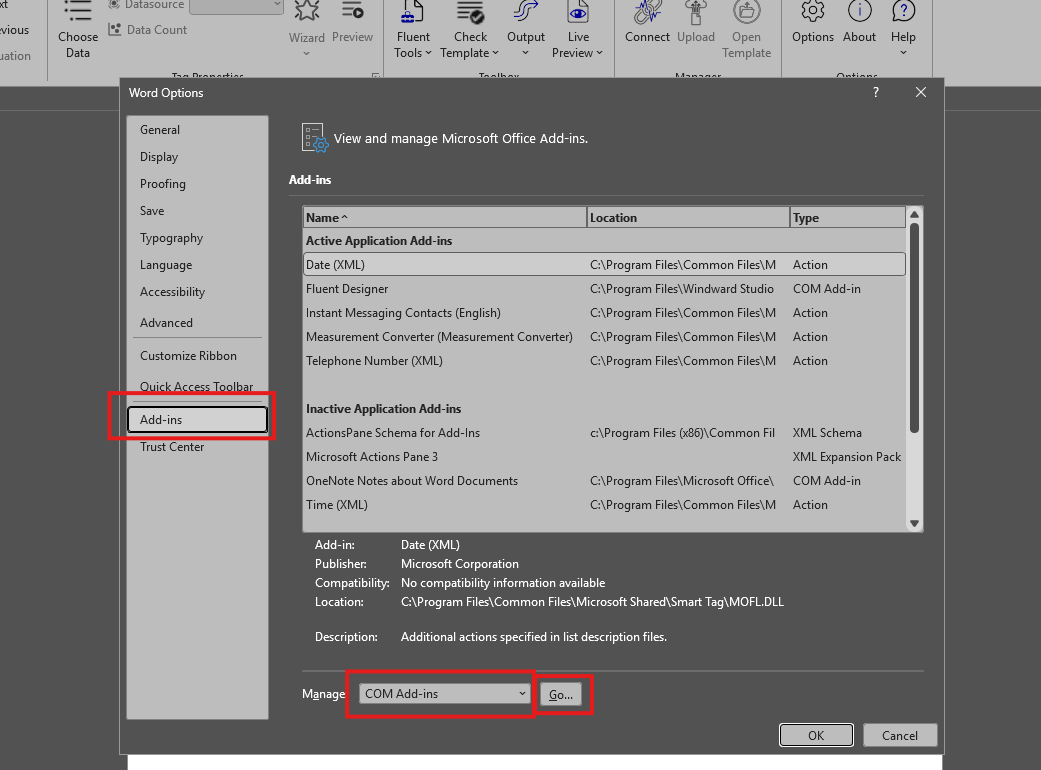
In the Word Options (or Excel/PowerPoint Options) window, select Add-ins in the left pane.
At the bottom of the window, open the Manage dropdown, select COM Add-ins, and then select Go....
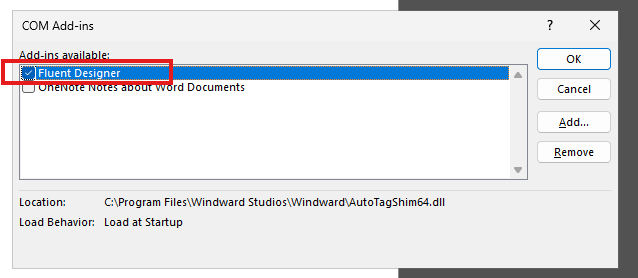
- In the COM Add-ins dialog, check the box next to Fluent Designer and select OK.
- Close the Office application and open it again. The Fluent tab should now appear on the ribbon.
The Fluent Designer add-in is listed with a load behavior of Load at Startup. Once it is enabled, Office loads it every time the application starts, so you do not need to repeat these steps.
If the Fluent tab is still missing after you restart Office, or if Fluent Designer does not appear in the COM Add-ins list, contact Windward Support at support@apryse.com for further help.