Why Is My Data Source Type Missing in Designer?
This article explains why certain data source types may not appear in the Connection Editor's New tab and how to install the required connectors to make them available.
The Problem
When you open the Connection Editor and click the New tab, you may notice that one or more data source types are missing from the list. For example, you may not see MySQL, PostgreSQL, Oracle, or IBM DB2 as options even though you expect them to be available.
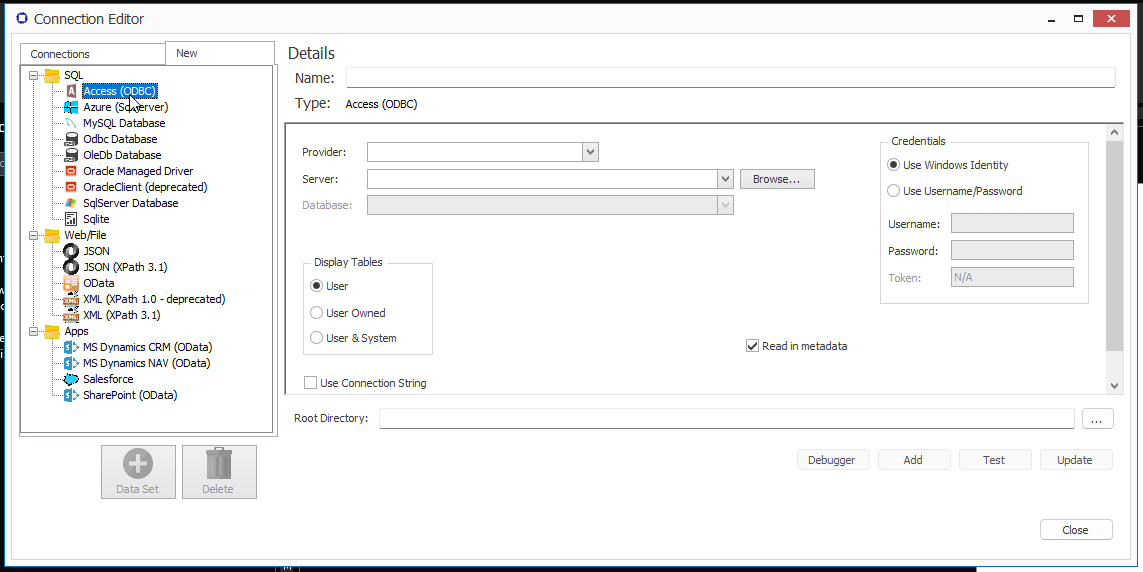
Why This Happens
Fluent Designer relies on ADO.NET connectors (also called providers or drivers) for certain data source types. These connectors are not bundled with Fluent Designer — they must be downloaded and installed separately from the database vendor. Until the appropriate connector is installed on the machine running Fluent Designer, that data source type will not appear in the Connection Editor.
Microsoft SQL Server is an exception — its ADO.NET provider ships with the .NET runtime and requires no additional installation. If SQL Server is missing, the issue is likely something else (see the Microsoft SQL Server connection guide for details).
Fix: Install the Required Connector
Find your data source type below and follow the linked guide to download and install the required connector. Once installed, restart Microsoft Office and the data source type will appear in the Connection Editor.
MySQL
Requires the MySQL Connector/NET (ADO.NET connector) from Oracle/MySQL.
→ How Do I Connect to a MySQL Data Source?
PostgreSQL
Requires the Npgsql ADO.NET connector (version 4.0.10 — do not install version 4.1 or later).
→ How Do I Connect to a PostgreSQL Data Source?
Oracle
Requires the Oracle Data Access Components (ODAC / ODP.NET Managed Driver) from Oracle.
→ How Do I Connect to an Oracle Data Source?
If your Oracle server uses a non-default listener port, see: How Do I Connect to an Oracle Datasource with a Non-default Listener Port?
IBM DB2
Requires the IBM Data Server Driver Package downloaded from IBM.
→ How Do I Connect to an IBM DB2 Data Source?
After Installing the Connector
- Close all Microsoft Office applications (Word, Excel, PowerPoint).
- Install the connector using the vendor's installer.
- Reopen your Office application.
- Open the Connection Editor via the Fluent Manager tab → Data Sources.
- Click the New tab — your data source type should now appear.
If the data source type still does not appear after installing the connector, verify that the connector was installed system-wide (not in a user-only mode) and that you are running the same architecture (32-bit vs. 64-bit) as your Office installation.